This chapter runs a whole fit in a few minutes, with the settings a demo project already carries. You’ll see the program fit a curve, and you’ll see what it gives back. Then you’ll run the same fit a second time and compare. The comparison shows why the rest of this book exists.
The example
The fit uses the demo project from Chapter 2: Opening a demo project, ML(30x2)P3_Best.xrcx. Its curve Data 1.dat was calculated from the model Target, so this fit has a known answer. Calculate Target and its χ² against the curve is 0.0013. It is not zero because the curve was calculated by an older version of the program, whose roughness factor differed very slightly (Chapter 7: A boundary with a width). No real measurement lets you check a fit this way.
Target is not a plain repeat of one period. The thickness of its Si layers changes through the stack. It is 25.00 Å in the top period, grows to 28.60 Å in periods 21 and 22, and falls to 26.96 Å in the bottom period, next to the substrate. The Mo layers are 15 Å in every period. So the period grows from 40.00 Å at the top to 43.60 Å, then falls to 41.96 Å. Its mean is 42.30 Å. The structure panel shows only 25.00 Å for the Si layer of Target, the value in the top period. The rest of the profile is held in the item Gradient 1 under Target.
For fit is the starting model: a 60 Å Si top layer on 30 periods of 24 Å Si and 18 Å Mo, with no gradient. Its fit limits and its fitting settings are already set. The fit has to find the gradient.
If you changed the demo in Chapter 2, open it again from the Examples folder and don’t save your changes. The fit must start from the model as installed.
Running the fit
- Open
ML(30x2)P3_Best.xrcxwith File > Open project (F3). - In the project tree, click For fit. The triangle moves to it.
- Check the fitting settings at the top right of the working area: Population 5000 and Iterations 200. The demo stores these values. They are also the book’s default. Mode is Polynomial with Order 3. Chapter 17: Two ways to describe a stack explains the modes.
- Choose Calc > Auto Fitting, or press F7. The Fitting Limits dialog opens (Figure 3-1). The fit hasn’t started yet.
- Click Run. The fit starts.
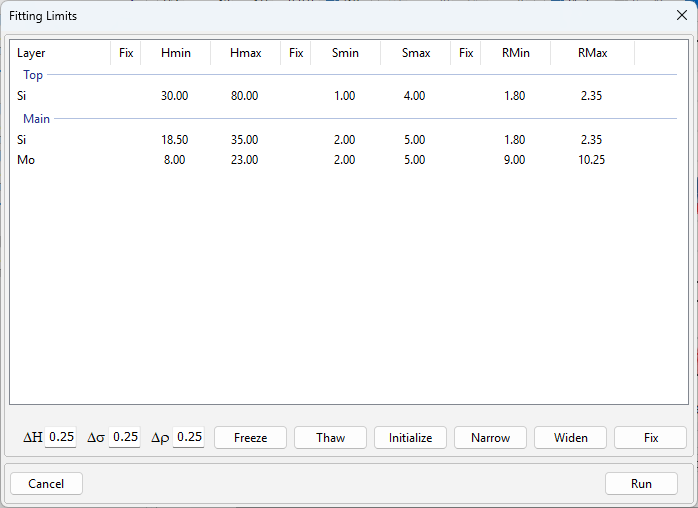
The dialog shows the limits of every parameter that the fit may change. Chapter 15: Generous limits explains how to choose them. In the demo every cell is white. In your own projects some cells may be yellow: a start value outside its limits, on a limit, or within 5 % of the range from one. A red cell is an error, such as a minimum above its maximum. The Fix button at the bottom right repairs both, and Run then asks no questions. If you click Run with yellow cells, a Warning box lists them and asks “Proceed anyway?”.
While the fit runs, the red curve of For fit moves toward the blue measured curve. The Convergence page at the bottom plots the best χ² at each iteration. When the fit ends, the status bar shows the fitting time and the device the fit ran on.
On the author’s PC the fit took 3.22 s on the graphics card, an NVIDIA GeForce RTX 5080. The program fits on the graphics card whenever it finds one it can use. That setting is on by default (File > Settings).
What the fit found
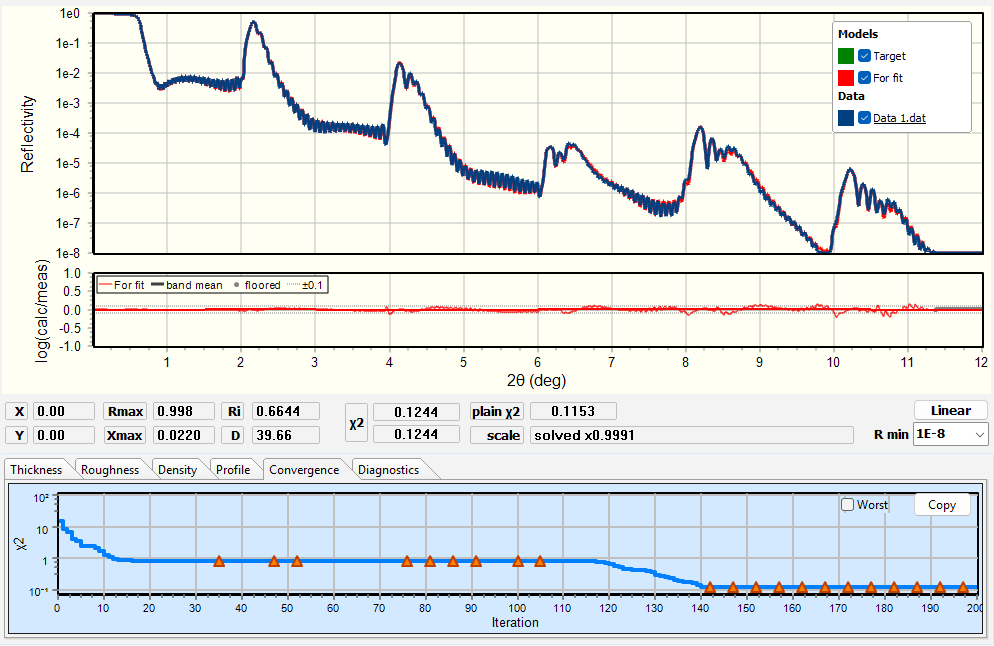
The red curve now lies on the blue one (Figure 3-2). χ² fell from 45.13 before the fit to 0.1244. The residual strip under the chart shows what is left: the logarithm of the calculated over the measured reflectivity, now close to zero everywhere (Chapter 18: The residual by band). The structure panel shows the fitted values of For fit.
The project tree also has a new item under For fit: F(H Main/Si). It is the fitted thickness profile of the Si layers in the Main stack. Polynomial mode gave the Si thickness a profile because its box in the structure panel was cleared. A ticked box holds a parameter at one value in every period. In For fit every other box of the Main stack is ticked. Chapter 17: Reading a drift in X-Ray Calc explains the profiles.
A profiled layer shows one number in its H field: the value in the top period. After this fit the Si field reads 24.66 Å. The profile item holds the rest. The Thickness page at the bottom of the working area draws the whole profile, period by period (Figure 3-3).

Going Deeper: how a profile gives the value in each period
X-Ray Calc numbers the periods of a stack from the surface: k = 1 is the top period, and k = 30 the one next to the substrate. A profile is a polynomial in k:
C₀ is the value in the layer’s H field. C₁ to C₃ are stored in the profile item, F(H Main/Si). With Order 3 there are three of them. The values in Table 3-1 were computed with this formula from the coefficients saved in each fitted project. Target’s Gradient 1 uses the same formula, with C₀ = 25, C₁ = 0.14, C₂ = 0.012 and C₃ = −0.0005.
Run it again
Fit the same curve a second time, from the same start:
- Open
ML(30x2)P3_Best.xrcxagain, and don’t save the first fit. - Click For fit, choose Calc > Auto Fitting (F7), and click Run.
Table 3-1 puts the two runs side by side with the true values of Target.
Table 3-1: Two fits of the demo from the same starting model, against the Target values the curve was calculated from. Values on a fit limit are in bold.
| Parameter | Start | Run 1 | Run 2 | Target |
|---|---|---|---|---|
| Top Si, H (Å) | 60 | 50.33 | 51.06 | 50 |
| Top Si, σ (Å) | 2 | 3.42 | 3.11 | 3 |
| Top Si, ρ (g/cm³) | 2 | 2.35 | 2.35 | 2.33 |
| Si, H in period 1, the top (Å) | 24 | 24.66 | 24.30 | 25.00 |
| Si, H in period 21 (Å) | 24 | 28.57 | 28.41 | 28.60 |
| Si, H in period 30, the bottom (Å) | 24 | 27.05 | 28.04 | 26.96 |
| Si, mean H (Å) | 24 | 27.29 | 27.32 | 27.30 |
| Si, σ (Å) | 4 | 2.99 | 2.98 | 3 |
| Si, ρ (g/cm³) | 2 | 2.35 | 2.35 | 2.33 |
| Mo, H (Å) | 18 | 15.00 | 14.99 | 15 |
| Mo, σ (Å) | 4 | 3.03 | 3.14 | 3 |
| Mo, ρ (g/cm³) | 9.5 | 10.13 | 10.14 | 10.20 |
| Mean period (Å) | 42 | 42.29 | 42.31 | 42.30 |
| χ² | 45.13 | 0.1244 | 0.8147 | 0.0013 |
Your numbers will differ from both runs. Every fit starts its swarm at random, so no two runs are the same (Chapter 9: Random seeds). The project saves the seed each fit used, so a run you want to keep can be repeated.
Why this is not yet a result
The thicknesses came out well. In all 30 periods the fitted Si profile matches the true one, within 0.34 Å in run 1 and 1.09 Å in run 2. The runs give a mean period of 42.29 Å and 42.31 Å, against 42.30 Å in Target.
The densities came out less well. In both runs both Si densities ended at 2.35 g/cm³, which is their upper limit. The true value is 2.33. A value on a limit was set by the limit. It says nothing about the layer. The Mo density was 10.13 g/cm³ in run 1 and 10.14 in run 2, against a true 10.20.
χ² does not show this either. Run 1 reached χ² = 0.1244 and run 2 reached 0.8147. Both are far above the 0.0013 of Target, so neither run found the true structure. Yet on the chart both fitted curves lie on the data. The residual strip stays close to zero. Neither the chart nor χ² tells you that a density sits on its limit.
The short way also skipped most of the work a real curve needs. Each skipped step has its row in Chapter 1: Table 1-1 and its own chapter:
- The curve was never checked or prepared. A real measurement needs its quality assessed, its scale set and its fitting range chosen (Chapter 10: Is This Curve Worth Fitting?; Chapter 11: Reading the Curve Before You Fit; Chapter 14: Preparing the Data).
- The model came ready-made. Your own starting model comes from the design and from the curve (Chapter 12: Building the Starting Model).
- The limits came with the project. Chapter 15: Choosing What to Fit shows how to set them, and what to do when a value ends on one.
- The settings came with the project. The resolution Δθ and the wavelength belong to your own measurement and instrument (Chapter 16: Fit Settings).
- The fit was judged by χ² and by eye. Chapter 18: Judging a Fit checks the Bragg orders, the critical edge and the fringes, and compares repeated runs.
- The densities were read as numbers. A fitted density is a free parameter. Don’t report it as a property of the material (Chapter 20: A free parameter, not a result).
Saving the fit
Save the fitted project in your own folder with File > Save project As (F2). The fitted values are saved in the model For fit, and the profile in its item F(H Main/Si). The demo in the Examples folder stays as installed, so you can repeat this chapter at any time.
Sources
- The two runs and the Target calculation were made for this chapter on 2026-09-25. They used X-Ray Calc 3.9.4.1250, 64-bit, on an NVIDIA GeForce RTX 5080, with the demo
ML(30x2)P3_Best.xrcxas the 3.9.4.1250 installer ships it (the author’s revision of 2026-09-25). Each run started from a fresh copy of the demo and was saved with File > Save project. The fitting times (3.22 s and 3.21 s) were read from the screen. χ² and the seed of each run come from the fit record in its saved project. For run 2 the screen of 3.9.4.1250 showed 0.8131, the running best on the graphics card; from 3.9.4.1270 the screen shows the recorded value, 0.8147. After run 1, the Fitting Limits dialog, opened with the Limits button, showed the two Si density cells yellow. Target was calculated with Calc > Run (F5). Every other number in Table 3-1 was read from the saved projects byscripts/figures/ch3_table.py, which also evaluates the profiles period by period. The saved projects are kept infigures-src/fits/. - The author (2026): the demo’s curve Data 1.dat was calculated from Target. The book’s default of 5000 particles and 200 iterations takes a few seconds on a GPU. The curve predates 3.9.4.1050, which changed the roughness exponent from 0.50299 to ½ (X-Ray Calc source,
Shared\Math\unit_calc.pas). Hence the χ² of 0.0013 for Target. - The X-Ray Calc 3 source, as read by the X-Ray Calc code session (2026-09-23):
- a profile is a polynomial in the period index counted from the surface (
Shared\Math\math_globals.pas:80–91,unit_materials.pas:237–247); - C₀ is taken from the layer’s own field (
frame_ProjectPanel.pas:1702), and after a fit the H field receives the fitted C₀ (unit_LFPSO_Base.pas:1258–1272); - the extension stores C₁ and up (
unit_XRCProjectTree.pas:515–538, 662–668); - the box after a field sets “Paired”, one value in every period (
unit_XRCLayerControl.pas:153). Only an unpaired parameter of a stack with N > 1 gets a profile (unit_LFPSO_Poly.pas:422); - Target’s Gradient 1 grades only the Si thickness of the Main stack;
- the D box shows the sum of the H fields (
unit_XRCStructure.pas:508–512,unit_CalcOrchestrator.pas:197); - GPU fitting is on by default (
unit_Config.pas), and the triangles on the Convergence page mark the shaken iterations (frame_ChartPages.pas:115–124); - checked again in release 3.9.4.1250: the yellow and red cells of the Fitting Limits dialog, yellow also for a value within 5 % of the range from a limit (
Units\unit_SmartLimits.pas); the residual strip, on by default (Result > Residual strip); the seed of each fit saved in the project’s fit record.
- a profile is a polynomial in the period index counted from the surface (
- X-Ray Calc Help: Fitting → Prerequisites for Fitting, Setting Fit Limits, Validation and Visual Feedback (yellow cells and Fix), Running a Fit. Running a Fit says that Calc > Auto Fitting starts the fit. The program opens the Fitting Limits dialog first, and Run starts the fit. The book follows the program.
- Fitting procedure (Penkov, Peng & Fu 2026): §7.5 (a value that ends on a limit was decided by the limit; extend the limit and fit again); §8.4 and §10.6–10.7 (the spread over repeated fits); §11.1 (a fitted density is a free parameter).
- Figures 3-1 to 3-3 are screenshots of the first run, X-Ray Calc 3.9.4.1250 (light theme, 96 dpi, window 1620 × 900).
scripts/figures/fig_3_fit_demo.pymakes all three from the raw captures infigures-src/screenshots/.
Cross-references: Chapter 1: Table 1-1; Chapter 2: Opening a demo project; Chapter 9: Random seeds; Chapter 10; Chapter 11; Chapter 12; Chapter 14: Four settings, in this order; Chapter 15: The near-bound rule; Chapter 16: Several runs, and their spread; Chapter 17: Reading a drift in X-Ray Calc; Chapter 18: Judging a Fit; Chapter 19: When the Fit Will Not Converge; Chapter 20: Density: A Free Parameter, Not a Result.