X-Ray Calc 3 is the program you fit with in this book. It calculates the XRR curve of a layered structure. It also fits that structure to a measured curve. This chapter gets the program running and takes you around its main window. By the end, you’ll have calculated your first curve.
Getting X-Ray Calc
X-Ray Calc 3 is open-source. Its Windows installer is published on the program’s GitHub page, under Releases: github.com/OleksiyPenkov/X-RayCalc3/releases. The installer runs only on 64-bit Windows.
- Download the installer,
XRayCalc3_Setup_<version>.exe. - Run it and accept the default folder,
Program Files\X-Ray Calc 3. - Start the program from the Start menu.
The installer puts the 64-bit and 32-bit versions of the program on your PC. It adds the Henke tables of optical constants, a folder of demonstration projects called Examples, and the User Manual. It also makes Windows open X-Ray Calc project files (.xrcx) with the program.
The screenshots in this book show version 3.9.4 (build 3.9.4.1250). Your version number is at the right end of the status bar, at the bottom of the main window. A later version may place a control differently. The menu names in this book are those of 3.9.4.
32-bit or 64-bit?
The two versions are built from the same source code. In recent builds they run at nearly the same speed: on the processor (without the graphics card) the difference is under 5 %. Older builds labeled the 32-bit entry x32 (Fast). The 32-bit version was faster then.
The difference that matters is memory. A 32-bit program can use about 2 GB of RAM. A large model fitted with a large swarm can need more. The 32-bit version then closes during the fit without any error message. The 64-bit version can use all the memory of your PC.
So start X-Ray Calc 3 x64. If you ever use the 32-bit version and it closes in the middle of a fit, the memory limit is the first thing to suspect.
The main window
The main window has three columns: the project on the left, the structure in the middle and the working area on the right (Figure 2-1).
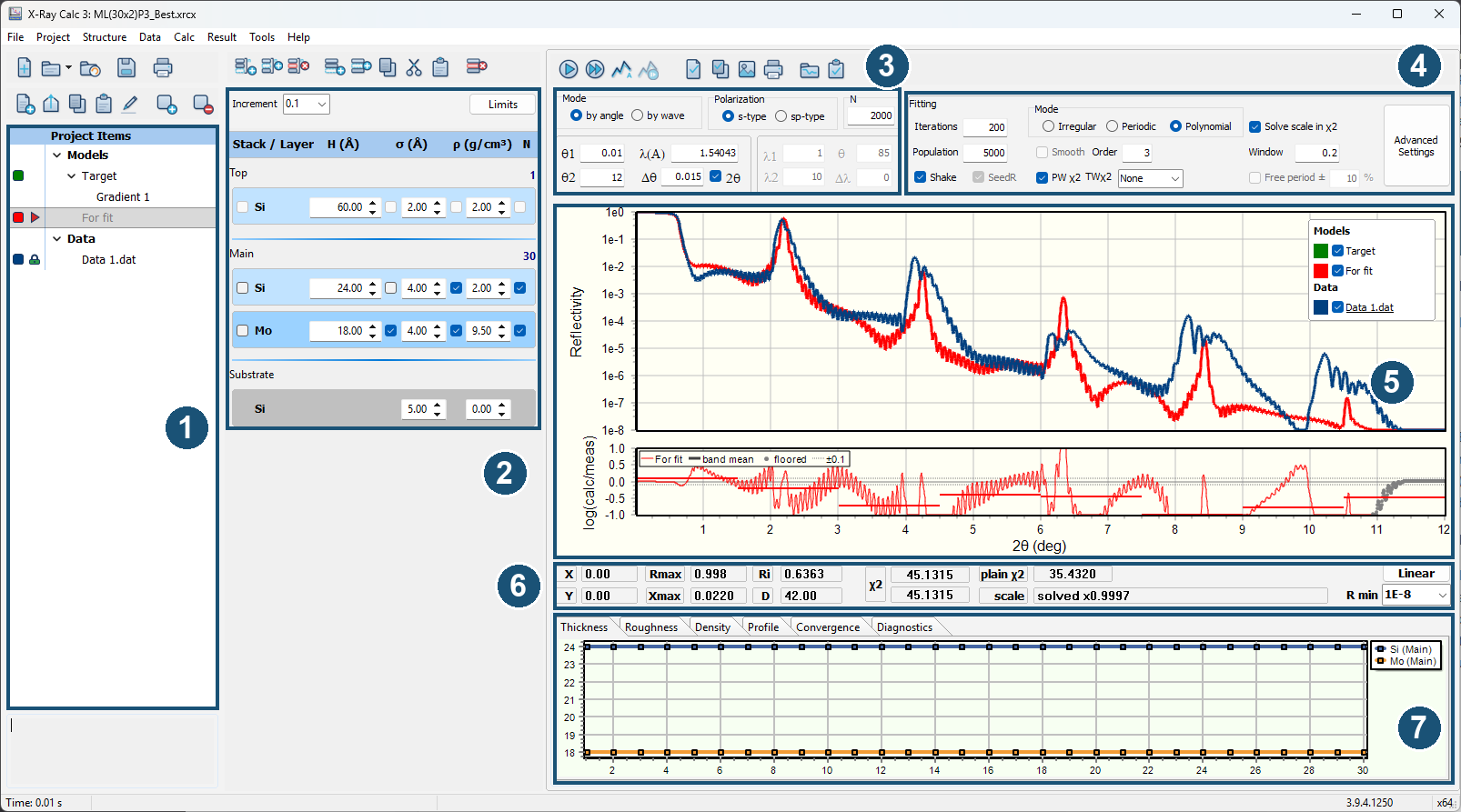
- The project panel holds the Project Items tree. A project keeps its models under Models and its curves under Data. You can add folders of your own. A triangle marks the active model: the one the structure panel shows and the one a calculation uses. A lock marks the measured curve that the models are compared with. The box at the bottom of the column shows the description of the item you select.
- The structure panel shows the active model as a stack of blocks: the Top stack, the Main stack and the Substrate. The number at the right of a stack’s title is N, its number of periods. Each layer shows its thickness H (Å), roughness σ (Å) and density ρ (g/cm³) in fields you can edit. The small box after each field is a fitting option. Ticked, it holds that parameter at one value in every period of the stack. Chapter 3: What the fit found shows it at work. The Increment box sets the step of the arrows beside each field. The Limits button opens the fit limits (Chapter 15: The Fitting Limits dialog).
- The calculation settings set the angle range, the wavelength, the resolution and the number of points. Your first calculation goes through them.
- The fitting settings control a fit. Part 3 uses them.
- The main chart shows the calculated and the measured curves. The legend at its top right lists them under Models and Data. A tick in the legend shows or hides a curve. Under the curves, the residual strip plots log₁₀(calculated / measured) of each model curve. A point above 0 means that the model lies above the data there. Result > Residual strip turns the strip and its parts on and off (Chapter 18: The residual by band).
- The Chart Info bar shows the cursor position, the χ² of the active model against the linked curve, the scale, and the reflectivity floor (R min, the box that reads
1E-8). The Linear button over R min switches the reflectivity axis between logarithmic and linear. - The chart pages plot the layers period by period on the Thickness, Roughness and Density pages. The Convergence page follows χ² during a fit.
The chart labels its reflectivity axis 1e-1, 1e-2 and so on. That is the program’s way of writing , . This book writes the powers of ten.
The menus sit above the columns. Table 2-1 lists what each one holds.
Table 2-1: The menus of X-Ray Calc 3.9.4.
| Menu | What it holds | Chapter |
|---|---|---|
| File | New project, Open project (F3), Recent projects, Save project (Ctrl+S), Save project As (F2), Settings, Exit | 2 |
| Project | New model, New extension, Duplicate Model, Copy model, Paste Model, New Folder | 12 |
| Structure | Add, insert and delete stacks and layers; Edit as text; Import structure; Undo (Ctrl+Z) | 12 |
| Data | Load, From clipboard, Normalize, Normalize (Auto), Smooth, Trim, Assess XRR quality, export | 10, 14 |
| Calc | Run (F5), Calc all models (F6), Auto Fitting (F7), Resume Fitting, Batch jobs Fitting, Benchmark | 2, 16, 17 |
| Result | Export, Save as graphics, Copy to clipboard, Copy as BMP, Copy as EMF, Export fit results, Fit report, Residual strip | 18, 23 |
| Tools | Create new material, Edit Henke table | Appendix C |
| Help | User Manual (F1), About | Introduction |
Opening a demo project
The Examples folder holds two demo projects. Open one of them:
- Choose File > Open project, or press F3.
- Go to the Examples folder,
Program Files\X-Ray Calc 3\Examples. - Open
ML(30x2)P3_Best.xrcx.
The program calculates the active model as soon as the project opens. The setting that does this is on by default, in File > Settings.
The demo holds two models and one curve. The curve Data 1.dat was calculated from the model Target. It is not a measurement. For fit is a starting model for fitting that curve, so the demo is a fit whose answer you know. For fit has a 60 Å Si top layer on 30 periods of 24 Å Si and 18 Å Mo, all on a Si substrate. So its period is 42 Å.
Double-click an item to change it:
- a layer opens the Layer properties dialog: its material, H, σ and ρ;
- a stack title opens the Stack properties dialog: its name and N;
- a model in the project tree opens its Properties: name, color and description.
A project is a single .xrcx file. Inside, it is a zip archive with these parts:
project.dsc: the project tree and the structure of every model;params.dsc: the calculation and fitting settings;data_<number>.dat: a copy of each curve you loaded;calc.dat: the calculated curve of the active model.
The measured curves are copied into the project. So the .xrcx file is all you need to send to a colleague. Save with File > Save project (Ctrl+S), or with Save project As (F2) under a new name.
Your first calculation
The calculation settings are at the top left of the working area (Figure 2-2).
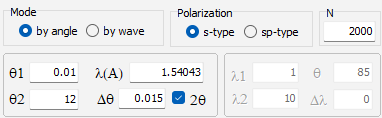
- Mode chooses what the curve is plotted against: the angle (by angle) or the wavelength (by wave). This book always uses by angle.
- Polarization: s-type is the right choice for XRR. sp-type takes about twice as long. At the small angles of XRR it gives almost the same curve (Chapter 8: Polarization: s-type or sp-type).
- N is the number of calculated points. When a measured curve is linked, N is not used: the model is calculated at the angles of the measured points.
- θ1 and θ2 are the start and the end of the angle range.
- λ(Å) is the wavelength, in Å.
- Δθ is the angular resolution. The calculated curve is blurred by a Gaussian of this width, to match the blur of a real instrument (Chapter 16: Choosing Δθ by a scan).
- 2θ sets whether the angles are 2θ or θ. The next section explains it.
A project that stores no settings opens with θ1 = 0.01, θ2 = 5, λ = 1.54043 Å, Δθ = 0.015 and the 2θ box ticked. A wavelength of 1.54043 Å is close to copper Kα1, 1.5406 Å. Always check λ against your own instrument. Chapter 10: The wavelength comes from the file shows how to read it from the measurement file.
Now calculate:
- Click For fit in the project tree.
- Choose Calc > Run, or press F5. The red curve is calculated again, and the Chart Info bar shows its χ² against Data 1.dat.
- In the structure panel, change H of the Mo layer from 18.00 to 20.00.
- Press F5 again. The Bragg orders of the red curve move to smaller angles, because the period has grown from 42 Å to 44 Å. The χ² changes too.
Calc > Calc all models (F6) calculates every model in the project. In the demo it adds the green Target curve.
The move in step 4 is the Bragg-order rule of Chapter 1: The four features of a curve: the period sets the positions of the orders. Chapter 13: Doing it in X-Ray Calc turns this one-change-at-a-time test into a method.
2θ or θ: the angle on your screen
The 2θ box is ticked by default. With the box ticked, θ1, θ2 and the chart axis are all in 2θ, the angle between the incoming beam and the detector. The program divides by 2 before it calculates, because the physics uses the grazing angle θ:
The first Bragg order in Figure 1-2 stands at 2θ = 1.8295°. Its grazing angle is θ = 1.8295° / 2 = 0.91475°.
This book leaves the box ticked. A measured curve is normally recorded against 2θ, so the chart then shows the angles your instrument used. A curve loaded from an .xrdml file is converted to whatever the box says.
Δθ is the exception. It is always a θ value, whether the box is ticked or not. The program doubles it internally when the axis is 2θ.
Sources
- X-Ray Calc Help: Installation → System Requirements and Data Storage; Application Overview (the three columns and the menu bar); Quick Start (the demo projects, the dialogs opened by a double-click, the calculation settings); Projects (the
.xrcxfile); Calculation → Theta Mode, Polarization, Number of Points and Running a Calculation; Troubleshooting → Choosing between x32 and x64 (the 2 GB limit of the 32-bit version, the same speed of the two versions) and Application crashes without error message; Charts → Residual Strip; Data → Loading XRDML Files (an.xrdmlcurve is converted to the unit of the 2θ box). - The author (2026): in recent builds the 32-bit and 64-bit versions differ in speed by less than 5 % on the processor. The 64-bit recommendation follows from it.
- The X-Ray Calc 3 source, release 3.9.4.1250:
- the installer script
XRayCalc3Setup.iss: 64-bit Windows only, the default folder, the Start-menu entries (the entry “x32 (Fast)” of older builds is removed), the installed files and the.xrcxassociation; - the main window form: the menus, their commands and shortcuts;
frame_ChartInfo.dfm: the Linear button and the R min box;unit_Config.pas,unit_Residuals.pas,unit_ResidualStrip.pas: the residual strip, log₁₀(calculated / measured) of each model curve, with all four items of Result > Residual strip on by default;frame_ProjectPanel.pas: whatSaveProjectwrites into the.xrcxarchive, the structures intoproject.dscand the settings intoparams.dsc;unit_XRCProjectTree.pas: the triangle marks the active model and the lock marks the linked curve;frame_CalcSettings.pas: the defaults of a project that stores none;unit_CalcOrchestrator.pas: with a linked curve, the model is calculated at the measured angles;editor_Layer.dfm,editor_Stack.dfm: the Layer properties and Stack properties dialogs;unit_calc.pas: Δθ is doubled on a 2θ axis.
- the installer script
- The author (2026): the demo’s curve Data 1.dat was calculated from the Target model.
- The Help and the code disagree in three places. The book uses what is on screen:
- Quick Start and Calculation say Calc > Calculate. The menu command is Calc > Run.
- Application Overview lists Calculate All in the Calc menu. The menu command is Calc all models (F6).
- Calculation says that Auto-Calc recalculates on every change. The only such setting in the code calculates when a project opens.
- Figures 2-1 and 2-2 are screenshots of X-Ray Calc 3.9.4.1250, 64-bit (light theme, 96 dpi, window set to 1620 × 900, captured as its visible frame of 1606 × 893), with the demo project as the 3.9.4.1250 installer ships it.
scripts/figures/fig_2_1_main_window.pynumbers the regions and crops the calculation settings.
Cross-references: Introduction: Beyond the Book; Chapter 1: What an XRR measurement records; Chapter 8; Chapter 10; Chapter 12; Chapter 13; Chapter 14: Four settings, in this order; Chapter 15: The Fitting Limits dialog; Chapter 16: Choosing Δθ by a scan; Chapter 17: Two ways to describe a stack; Chapter 23: What the program keeps, and what it doesn’t; Appendix C: Where Optical Constants Come From; Appendix A: Notation and Units; Appendix B: Menus, Buttons and Keys.