The fit compares a calculated curve with the measured one. Four settings decide what that comparison sees: the scale of the measured curve, whether it is smoothed, the lowest reflectivity the model may reach, and the range of angles. None of them is fitted. This chapter sets all four for the Co/C multilayer CoC4, with the starting model of Chapter 12: Checking the start on the chart. It uses the numbers read off the curve in Chapter 11: What you read before the first fit.
Four settings, in this order
Set them in this order: the scale, then smoothing, then the fitting range, then the floor. The scale is anchored at , the angle of the plateau maximum. So read and set the scale before you trim anything.
The fitting procedure started as the author’s own practice in X-Ray Calc. Three of the author’s four choices were later tested on curves calculated from a known structure. All three were changed. Table 14-1 lists them. The rest of the chapter teaches the tested versions.
Table 14-1: Preparing the data: what the author did in X-Ray Calc, and what testing against a known structure changed.
| Setting | The author’s practice | After testing |
|---|---|---|
| Scale | Data > Normalize (Auto) | the same, and Solve scale in χ² lets the fit correct it within a window |
| Smoothing | Data > Smooth, one pass, always | off |
| Fitting range | from θmax to past the last visible order, then Data > Trim | from θmax to at least the seventh order the period predicts |
| Floor | at the background, read off the curve | one count (not tested) |
Setting the scale: Normalize (Auto)
An imported curve has its largest value at 1 (Chapter 10: What the import does to the counts). The model’s reflectivity at the same angle is lower than 1. Data > Normalize (Auto) moves the measured curve so that the two agree at that point:
- Select the starting model and choose Calc > Run (F5).
- Select the data item and choose Data > Normalize (Auto).
- Zoom on the plateau and check that the measured maximum now lies on the model.
The command finds the largest measured value below θ = 0.5° (2θ = 1° with the 2θ box ticked) and its angle. It takes the model’s value at the first calculated point at or above that angle. Then it divides every measured value by (largest measured value) / (model value). If the model has not been calculated that far, the command says so and changes nothing. It adds a line with the factor and the angle to the item’s description, the box at the bottom of the project panel.
For CoC4 the largest value is the plateau at 2θ = 0.4165°, the of Chapter 11. The starting model gives 0.842 there. So the command divides the curve by 1.188. The plateau maximum becomes 0.842. The description gets the line * Normalised (Auto): divided by 1.1877 at 2Theta 0.4165.
Letting the fit solve the scale
The anchor is one point. It is not a measurement of the scale. A reflectometer counts photons. The reflectivity is that count divided by the intensity of the incident beam. That intensity is seldom known to better than several percent. The specimen adds its own errors at small angles. A beam wider than the specimen loses part of its footprint, and a small alignment error lowers the plateau. Each of these errors multiplies the whole curve by one factor.
CoC4 shows the problem. Its first order stands at 0.574 of the plateau. The structure can make at most 0.474 (Chapter 11). The plateau was probably measured too low. Normalize (Auto) then puts the whole measured curve too high.
A fit held at a wrong scale corrects it with the structure. The density of Co raises and lowers every order and the edge together (Chapter 13: The variants and what they move). A scale error does almost the same. So the error goes into the densities and the σ values. In one laboratory’s tests on calculated curves, a 15 % error in the anchor cost 0.67 g/cm³ in the density of Co.
Solve scale in χ² removes most of this. For every structure it scores, X-Ray Calc finds the scale factor that gives that structure the lowest χ² (Chapter 9: The scale). The anchor becomes the starting point. Window says how far the fit may move from it: the solved factor stays between 1/(1 + Window) and 1 + Window times the anchored one.

The default window is 0.2, which allows a factor from 0.833 to 1.2. One laboratory uses 0.7, which allows 0.588 to 1.7. In its tests, the window of 0.2 held the solved scale at a bound in up to 54 of 240 fits. One real glass specimen needed a factor of 1.476.
Table 14-2 fits CoC4 three ways from the same start: with the scale held, and solved within each window.
Table 14-2: CoC4 fitted with the scale held and solved. Each row gives the mean and the standard deviation of five fits with different seeds. The scale factor is the one the fit found, relative to Normalize (Auto). No fit ended with its scale at a bound. Periodic mode, the period held at 54.70 Å (Chapter 11), Population 5000, Iterations 200, PW χ² on, TW χ² None, Δθ = 0.012°, no smoothing, the floor and range of this chapter. Fitted by X-Ray Calc 3.9.4.1250.
| Scale | Scale factor | ρ of Co (g/cm³) | ρ of C (g/cm³) | χ² |
|---|---|---|---|---|
| held (Solve scale in χ² off) | 1 | 7.834 ± 0.003 | 1.76 ± 0.03 | 1.458 ± 0.009 |
| solved, Window 0.2 | 0.852 ± 0.001 | 7.346 ± 0.010 | 2.003 ± 0.004 | 1.284 ± 0.001 |
| solved, Window 0.7 | 0.853 ± 0.003 | 7.351 ± 0.007 | 1.99 ± 0.02 | 1.291 ± 0.015 |
The fit moved the scale down by 15 %. That is close to the 0.83 the first order suggests (0.474 / 0.574). Held at the anchor, the fit put the difference into the densities: Co 0.49 g/cm³ higher and C 0.24 g/cm³ lower. The thicknesses changed by 0.15 Å or less, because the order positions fix them. On this curve the two windows gave the same answer. The factor of 0.852 lies inside both windows, but only 2 % inside the window of 0.2. The χ² values of the held and solved rows can’t be compared. A solved χ² is never higher than the held χ² of the same structure (Chapter 9: The scale).
Reading the result. After each Calc > Run and each fit, the scale box of the Chart Info bar shows the factor: “solved x0.8514”, for example. “anchored” means the option is off. “at bound” after the number means that the best factor lies outside the window and the fit used the edge of the window. A fit at the bound has not solved its scale. Look first at the end of the fitting range, because a long tail lying on the floor pulls the scale. Then look at the model.
Renormalizing after a fit. The scale was anchored to the starting model. After a fit, look at the plateau and the edge. If the fitted model no longer lies on the measured curve there, set the scale again from the fitted model and fit again:
- Select the fitted model and choose Calc > Run (F5).
- Choose Data > Normalize (Auto).
- Set the floor again (see The floor: one count) and run the fit from the fitted structure.
You can also apply the solved factor itself with Data > Normalize …. The chart then shows the measured curve at the scale the fit used. Set the floor again after this too.
Why smoothing stays off
Data > Smooth replaces each point by the mean of six points: the three below it, the point itself and the two above it. It works on the linear reflectivity. Each click smooths again.
The author smoothed every curve once before fitting. Tested on calculated curves with counting noise at four brightness levels, one pass was the better choice in 39, 47, 28 and 35 % of the paired fits, for plateaus of 605 000, 87 000, 17 000 and 3600 counts. A pass was expected to help a dim curve. The dimmest curve was among the worst. So no brightness exists at which smoothing pays. The period suffers most. A heavy layer’s density is pushed up, because smoothing raises the minima of the curve and the fit compensates. Only the program’s own six-point window was tested.
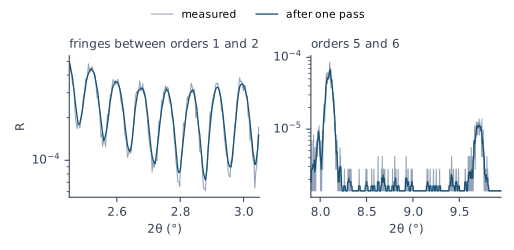
Figure 14-1 shows one pass on CoC4. The fringes keep their shape. The strong orders lose little: orders 1 to 4 fall by 1–3 %. The weak orders are made of a few counts, and the pass spreads them out. Order 5 falls to 0.78 of its height, and orders 7 and 8 fall to about half.
Where the fitting range starts and ends
The start. The range starts at , so it includes the critical edge. For CoC4 that is 2θ = 0.4165°. A single film of a light material is the exception (Chapter 21: The edge of a carbon film).
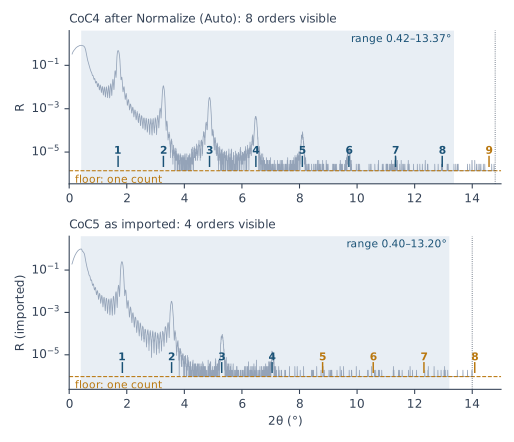
The end. The range covers at least the first seven Bragg orders that the period predicts, whether the curve shows them or not. It never runs past the end of the measurement. An order counts as visible when it stands more than three times above the background. Take the predictions from the straight line of Chapter 11: The period from a straight line:
- Seven or more orders visible: end a quarter of the order spacing past the last visible order.
- Fewer than seven visible: end half a spacing past the seventh predicted order, where the missing orders would be.
The rule comes from fits of curves calculated from a known structure. With four or five visible orders, running the range on to the seventh predicted order cut the errors of the fitted parameters to 0.70 of their size with the old end, past the last visible order. With seven visible orders, any extension raised the errors, by a factor of 1.19. Past the seventh order the gain shrank again. A longer range is not always better. An order that the model predicts and the data don’t show still carries information about the layer ratio and the interfaces. The fit can use it only if the range reaches the angle where the model puts a peak. The rule was tested with PW χ² on, the default.
CoC4 shows eight visible orders (Chapter 11). Order 8 is at 2θ = 12.96°, and the predicted spacing there is 1.63°. So the range ends at 12.96 + 1.63 / 4 = 13.37°. The measurement runs on to 14.80°.
CoC5, the Co/C curve of Chapter 10, shows only four orders. A straight line through them gives D = 50.34 Å and predicts order 7 at 2θ = 12.32° and order 8 at 14.09°. So the range ends at 12.32 + (14.09 − 12.32) / 2 = 13.20°, before the measurement ends at 14.00°. The CoC5 fit of Chapter 9: The scale ended at 8.4°, just past order 4, as the older rule said.
Trimming the data to the range
- Tick the 2θ box of the calculation settings, so that θ1 and θ2 are in 2θ.
- Enter the start of the range in θ1 and the end in θ2. For CoC4: 0.4165 and 13.37.
- Choose Calc > Run (F5) and note χ².
- Select the data item and choose Data > Trim. X-Ray Calc deletes the points below θ1 and above θ2. The points at θ1 and θ2 stay.
- Choose Calc > Run (F5) again. χ² changes, because the points it sums have changed.
Compare χ² values only over the same range (Chapter 9: The scale). Trim after Normalize (Auto). The maximum that the scale is anchored to is then still in the data.
The floor: one count
X-Ray Calc raises every calculated value below a floor to the floor. It does this in every Calc > Run and in every fit, before the resolution blur. The measured values are not changed. The floor is the R min box under the Linear button, at the right end of the Chart Info bar. It also sets the bottom of the chart. The default is 1E-7. The project saves the value.
Set the floor to one count on the scaled curve:
- Read the factor in the line Normalize (Auto) added to the item’s description.
- Divide one count by it. On an imported curve one count is 1 / (peak rate × counting time) (Chapter 10: What the import does to the counts). On a text file in counts it is 1.
- Type the result into R min, for example
1.38E-6, and press Enter.
For CoC4, one count on the imported curve is . The factor is 1.1877. One count on the normalized curve is / 1.1877 = . As a check, divide the plateau maximum by : 0.842 / 608 828 gives the same number. The expert’s own CoC4 project had a floor of (Chapter 11: The Chart Info bar). That is one count on the curve before normalization.
Why one count: the background of an .xrdml import is one count, because zero counts were replaced (Chapter 11: The plateau and the background). A floor above the background cuts off the model where the data fall lower. A floor below it lets the model fall under data that can’t go lower, so the residual in the tail is all on one side. Chapter 18: The residual by band finds both.
Going Deeper: why the floor comes last
The floor depends on the scale, and the scale can change after a fit. The range and the trim don’t depend on it. So the floor is the one setting you check again before every fit. The description keeps one line for each Normalize (Auto), so you can trace every factor the curve was divided by.
What this means when you fit
Set the scale with Normalize (Auto), after checking that the largest value is the plateau. Keep Solve scale in χ² on. Choose the window from how well you trust the anchor, and report the factor with every fit (Chapter 23: Writing the numbers).
Don’t smooth.
Trim to the range: from to at least the seventh predicted order.
Set the floor to one count, and set it again whenever the scale changes.
Then choose the free parameters and their limits (Chapter 15: Choosing What to Fit) and the fit settings (Chapter 16: Fit Settings). After the fit, the edge check (Chapter 18: The edge) tells you whether to renormalize.
Sources
- Fitting procedure (Penkov, Peng & Fu 2026): §4.1, the scale anchored at the measured maximum below a set angle, as R_calc(θ_max) / I_max; §4.2, renormalize when the fitted model’s plateau and edge no longer overlap the measured curve; §4.3, the scale solved within a window around the anchor, and a scale at the bound read first as a tail on the floor; §5.1–5.4, smoothing off, no condition to switch it on, what a pass costs, only the default window tested; §6.1–6.2, the floor at one count times the scale, and why; §6.3, the range from θ_max, with the single-film exception; §6.4, at least the first seven predicted orders, a quarter spacing past the last visible order or half a spacing past the seventh predicted one, never past the measured end; §6.5, trim after normalizing; §1.3 and §1.5, the one-count background of an
.xrdmlimport; Appendix, scale, background and resolution are never fitted. - The procedure’s preset (
skill-v5\presets\csmic-empyrean.json), one laboratory’s values and their grounds:scale.solve_window0.7, and inscale.reasonthe 15 % anchor error costing 0.67 g/cm³ in Co, the default window clamping 15/240, 54/240 and 10/199 fits, and the glass specimen needing 1.476;smoothing.reason, the paired comparisons 39 / 47 / 28 / 35 % at 605 000 / 87 000 / 17 000 / 3600 counts;fitting_range.reason, the error ratios 0.70 at four or five visible orders and 1.19 for any extension at seven, the minimum at the seventh order, and the dependence on PW χ²;acceptance.thresholds.order_visible_factor3. The preset’s range reason still names the older end “half a spacing past the last visible order”; the procedure’s §6.4 states a quarter and says the implementation always used a quarter. The chapter follows §6.4 (reported to the author). - The methods paper on the procedure (Penkov, Peng & Fu 2026, arXiv:2609.28926), Table 1 (the expert’s choices and what testing against known truth revised: the scale solved inside the objective, smoothing off, at least seven predicted orders; the background floor not tested) and Table 2 (the GUI actions: Data > Normalize (Auto); Data > Smooth, one pass; Data > Trim with the left and right limits set).
- The X-Ray Calc 3 source: Normalize (Auto) takes the largest measured value below θ = 0.5° (2θ = 1°; the whole curve by wavelength or when no point lies below), divides by it over the model’s value at the first calculated point at or above its angle, refuses when the model stops short, and adds the line ”* Normalised (Auto): divided by … at …” to the item’s description (
XRayCalc3\Units\unit_DataProcessing.pas,NormalizeAuto;XRayCalc3\Views\frame_ChartInfo.pas,NormalizeDataAuto); Normalize … divides by the coefficient of the Data normalization box, and Smooth isMovAvg(Data, 5), the six-point mean (XRayCalc3\Views\frame_ChartInfo.pas,NormalizeData,SmoothData;unit_DataProcessing.pas,MovAvg); Trim keeps the points from θ1 to θ2 inclusive (frame_ChartInfo.pas,TrimData); the R min box and its default1E-7(frame_ChartInfo.dfm,cbMinLimit;Shared\Math\unit_AxisLimit.pas), sent to the calculation and the fit asLimit(XRayCalc3\Units\unit_CalcOrchestrator.pas:206, 364,PrepareCalc,PrepareLFPSO) and applied to the unblurred curve (Shared\Math\unit_calc.pas,CalcTet), saved with the project (frame_ProjectPanel.pas,SaveProjectINI); the residual strip, which reads the measured curve at the solved scale of the last calculation (XRayCalc3\Forms\frm_Main.pas,RefreshResiduals, release 3.9.4.1250); with a linked curve the model is calculated at the measured points (unit_calc.pas,PrepareWorkers); the solved factor applied to the measured values and the scale box texts “anchored”, “solved x…” and “at bound” (unit_calc.pas,CalcChiSquare;frame_ChartInfo.pas,SetChiScale); Solve scale in χ² checked and Window 0.2 by default, and the fit-settings Smooth box enabled in Irregular mode only (XRayCalc3\Views\frame_CalcSettings.pas,.dfm). - X-Ray Calc Help, Data: Normalize, Smooth, Trim (and the note that the three change the data item at once, outside Undo); Fitting: Solving the Measured Scale (the incident intensity known to several percent, footprint and alignment, a wrong scale absorbed as roughness or density, the window, reading the scale box, applying the ratio, the chart kept at the anchored scale, solved and anchored χ² not comparable). Data: Normalize also gives the search below θ = 0.5° and the description line. Charts: Interaction (R min, the floor of every calculation and fit, one count after normalization). Data Conditioning Walkthrough, Step 2, “Do not smooth”. Reported with this chapter and corrected in the program and the Help on 2026-09-24: the box had no label and the Help called it “Min limit”; Normalize (Auto) searched the whole curve and did not record its factor; the walkthrough advised smoothing a noisy tail.
- The measured curves CoC4 and CoC5 are from the fitting procedure’s data deposit (CC BY 4.0),
curves/CoC4.xrdmlandcurves/CoC5.xrdml, read in place, as imported in Chapters 10 and 11. - Calculated for this chapter (2026-09-24, rerun 2026-09-25) with the X-Ray Calc 3.9.4.1250 engine.
scripts/figures/ch14_engine_data.pyanchors the scale of CoC4 on the starting model of Chapter 12 (0.842 at θ_max), computes the range ends of CoC4 and CoC5 from the straight lines of Chapters 10 and 11, and runs the fifteen fits of Table 14-2 (five seeds each; bounds: thicknesses from two thirds to four thirds of the start, σ 1–8 Å, ρ of C 1.5–2.4 and of Co 6.0–8.79 g/cm³, the top layer 5–40 Å, σ 1–10 Å, ρ 0.6–1.4 g/cm³). In every fit the σ of the top layer ended at its lower limit of 1 Å.scripts/figures/fig_14_figures.pydraws Figures 14-1 and 14-2, crops Figure 14-3, and prints every number of the chapter (figures-src/ch14/numbers.txt). Figure 14-1 applies the program’s six-point mean, copied line for line.
Cross-references: Introduction: About This Book; Chapter 1: What an XRR measurement records; Chapter 4: What this means when you fit; Chapter 6: What this means when you fit; Chapter 8: What this means when you fit; Chapter 9: The scale; Chapter 10: What the import does to the counts; Chapter 11: The plateau and the background; Chapter 12: Checking the start on the chart; Chapter 13: The variants and what they move; Chapter 15: Choosing What to Fit; Chapter 16: Fit Settings; Chapter 17: Step 1, one period with the period free; Chapter 18: The edge; Chapter 18: The residual by band; Chapter 21: The single-film exceptions; Chapter 23: Writing the numbers; Chapter 24: A clamped scale; Chapter 25: Is the scale inside its window?; Chapter 26: The scale; Appendix A: Notation and Units; Appendix B: Menus, Buttons and Keys; Appendix D: Glossary.